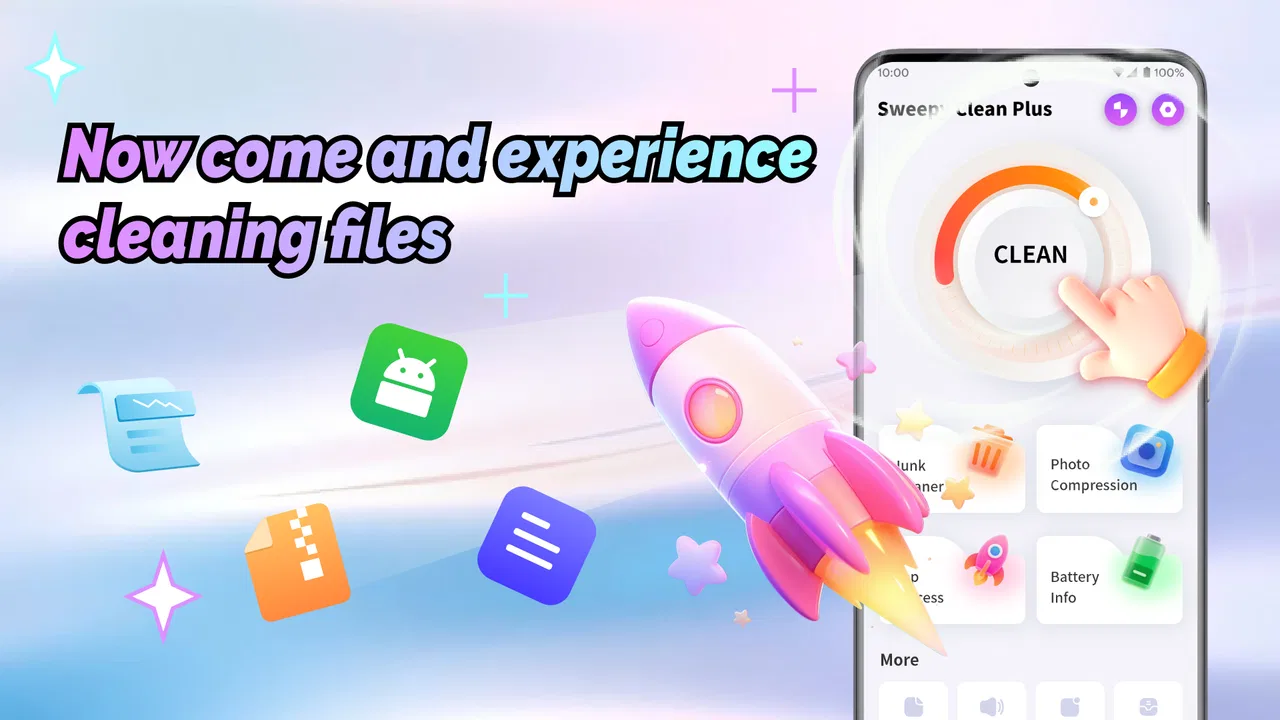
Sweepy Clean Plus
- 4.6
- Rating
- 100.00K
- Installs
- Free
- Price

 Analysis by App-foxy
I tried Sweepy Clean Plus as a lightweight Android tool for one clear job: helping remove cached data without turning phone maintenance into a complicated project. That narrow purpose is also its main appeal. If your phone feels cluttered after weeks of browsing, social media, video streaming, and app updates, a cache-cleaning utility can be a convenient first step before you start deleting personal files or uninstalling apps.
My overall impression is practical rather than spectacular. This is not an all-purpose phone optimizer, and I would not treat it as a magic fix for every slow-device complaint. It is better understood as a focused cleaning tool from Kaluwa Labs, available free of charge and aimed at everyday Android users. The app is listed for everyone, which fits its straightforward role, while its minimum requirement of Android 6.0 keeps it accessible to many older devices.
The important question is not whether clearing cache is useful in theory. It is whether the app makes that task clear enough to perform safely, and whether the result matches the problem you are trying to solve. In my experience, the answer depends heavily on what is filling your storage and how much control you expect from a cleaning app.
You May Also Like

 Blood Strike: 2.5 Anniversary
Blood Strike’s Loadouts Turn Every Drop Into a Tactical Gamble
A close look at Blood Strike’s custom loadouts: how fast access to signature weapons reshapes its battle royale rhythm, rewards preparation, and narrows the gap between fights.

 Pandora - Music & Podcasts
Pandora’s Music Is Easy to Start, but Harder to Recover
Pandora’s strength is its low-effort path from a seed to a station. Its weak spot is how much confidence it asks you to place in connection, setup, and quiet recovery.

 8 Ball Pool
 Is Built on Rivalries, Rematches, and Routine
A close look at the rivalries, rematches, shared routines, and unanswered safety questions that turn a quick pool match into a persistent mobile community.

 Samsung Music
’s Quiet Strength Is Playing What You Already Own
Its reach comes less from spectacle than from dependable access to a personal library. That simplicity is both the app’s strongest retention engine and its ceiling.

 AccuWeather: Weather Radar
AccuWeather Review: A Quick, Clear Forecast for Everyday Decisions
For everyday plans, the best forecast is the one you can understand quickly. AccuWeather makes rain timing, radar, and local conditions easy to act on, with a few trade-offs.

 Hill Climb Racing
Why Hill Climb Racing Still Turns Crashes Into One More Run
A tiny car, a bumpy hill and one more upgrade: Hill Climb Racing keeps resurfacing because its simple chaos makes every near-miss feel personal.
More From Our News Desk
View All News


Where the real friction appears during everyday use
The first place people can get stuck is the expectation gap. A cache cleaner deals with temporary app data; it does not automatically understand every reason a phone may feel slow. If the real issue is nearly full permanent storage, an aging battery, an app that keeps crashing, weak network service, or a background process using too many resources, cleaning cached files may produce little visible change.
That distinction matters because the app’s store summary focuses on cache cleaning. I see that as a useful sign of focus, not a weakness by itself. Many tools in this category try to combine cleaning with battery claims, speed claims, security checks, duplicate-file searches, and aggressive notifications. A focused cleaner can be easier to understand, but it also means you should not expect it to replace Android’s storage settings or a file manager.
Another likely sticking point is the difference between temporary data and information you actually want to keep. Cached images, previews, and other temporary material can often be recreated by the relevant app. Downloads, photographs, documents, saved media, and offline content are different. Before confirming any cleanup, I would read the screen carefully and make sure the action concerns cache rather than personal files or app data.
This is especially important for apps that hold local work. A cache sweep should not be treated as a general reset button. If you are troubleshooting a banking app, a note-taking app, a game, or a work tool, clearing its full stored data can affect sign-in state or local settings. My practical rule is simple: use a cache-cleaning action for temporary clutter, and use Android’s own app settings when you deliberately want to reset one application.
The app’s audience size suggests that it has found interest among ordinary Android users, with over one hundred thousand installs and a 4.6 average from around five hundred ratings. Those figures make it look established enough to try, but they do not remove the need for careful confirmation. A strong rating can tell me that many people found the basic experience useful; it cannot tell me that every phone will show the same amount of recoverable space.
What I check before blaming the cleaner
When a cleaning result looks smaller than expected, I first check the phone’s own storage screen. Android may report space differently from a third-party utility, and cached material can return quickly when apps reopen. A streaming app, browser, or social feed may rebuild temporary files during normal use, so the number can rise again without the cleaner having failed.
I also check whether the storage problem is actually caused by large videos, camera folders, messaging attachments, offline maps, or downloaded documents. Those items are usually more important than cache, and deleting them requires a personal decision rather than an automatic sweep. This is one of the most useful habits when using a tool like this: identify the type of storage first, then choose the least destructive action.
If the app appears not to find anything, I would not repeatedly press the scan or clean control hoping for a different answer. I would close large apps, allow the phone to finish any pending system work, and look again at the device storage breakdown. A clean result may simply mean the cache is currently modest, not that the application is malfunctioning.
Setup checks that prevent avoidable problems
Because Sweepy Clean Plus is a tools app rather than a complicated productivity suite, the setup should be approached with a simple goal: understand what it is asking you to review before starting a cleanup. I would install it on a stable connection, open it when I am not in the middle of an important task, and avoid cleaning immediately before I need an app to work offline.
The first useful check is the Android version. The application supports Android 6.0 and later, so an older compatible phone may still be able to use it. Compatibility does not guarantee identical behavior across manufacturers, though. Android interfaces and storage handling can vary between devices, especially on phones with heavily customized software.
The next check is the available free space shown by Android itself. If the phone is critically full, I would not rely on a single cleaning pass. I would first protect important photographs and documents, then review the largest categories. A cache sweep can be a low-risk starting point, but it may not release enough room for a major system update or a large application installation.
I also recommend opening the app when the phone is charged or has comfortable battery remaining. A scan or cleanup is not something I would begin while travelling with a nearly empty battery, particularly on an older device. That is not a special requirement of this particular cleaner; it is simply sensible maintenance practice when the phone is already under strain.
One setup habit that saves confusion is to note the storage figure before cleaning. I would take a quick look at the phone’s storage page, run the cleaning process, and then check the same place again after a short pause. This gives a more realistic comparison than judging the result from a single animation or a changing number inside an app.
If a permission or system confirmation appears, I would read its wording instead of accepting it automatically. The safest approach is to grant only what is clearly needed for the action I intend to perform. If the wording is unclear, I would cancel and use Android’s built-in storage controls until I understood the request. A cleaning app should save time, not pressure me into approving something I cannot explain.
A sensible first session
For a first run, I would begin with a phone that has a known storage issue but no urgent work open. I would review the categories presented, look for a clear cache-related action, and avoid treating every suggested item as disposable. After cleaning, I would reopen one or two frequently used apps to confirm that normal behavior remains intact.
That last step is more useful than it sounds. Some apps may take a little longer to rebuild temporary content after a cleanup. If a familiar app behaves normally after reopening, the process has probably done what I wanted. If it asks for unexpected setup information or loses something I needed, I would stop using the cleaner for that task and investigate the individual app through Android settings.
The current version is 1.1.2, and the product is relatively new, having been released on September 26, 2025. I would keep the application updated through the official app store, but I would not assume that a newer version changes the basic nature of the tool. The right reason to use it remains the same: reviewing and cleaning cache, not performing blind maintenance.
Recovering when a cleaning session does not go as planned
A common recovery situation is a scan that seems stuck. My first response would be to wait briefly, especially if the device has many installed apps or limited hardware. If nothing changes, I would leave the screen, close the app normally, and reopen it. I would avoid repeatedly launching several cleaners at once because they can compete for storage access and make the phone feel busier.
If the app closes unexpectedly, I would restart the phone before trying again. Then I would make sure Android has enough free space to operate normally. A device with almost no free room can behave unpredictably, and the cleaner may be only one of several applications affected. If the same problem continues, Android’s own storage management is the better fallback for a single cleanup.
Another scenario is a result that appears to do nothing. In that case, I would check whether the target apps were open during the process. Recently used apps may recreate cache quickly, making the improvement difficult to notice. I would also compare the actual free-space figure rather than relying on whether the phone feels faster immediately. Cache removal and performance improvement are related only in certain situations.
If an app behaves differently after its cache is cleared, I would reopen it and give it time to rebuild temporary content. If the problem remains, I would go to Android’s app information screen and inspect that app alone. This is a safer troubleshooting path than repeatedly cleaning everything. It helps separate a damaged or poorly behaving application from a general storage problem.
For an important account, I would avoid using a broad cleaning action as the first troubleshooting move. I would confirm that I know the login details and that any locally stored work is synchronized before changing app storage. This is one of the trade-offs of convenience tools: a broad action is quick, but an individual app review gives me more control.
I would also avoid running multiple automatic maintenance apps together. Two cleaners can show different interpretations of temporary files, and their notifications can become more distracting than the original storage problem. Sweepy Clean Plus makes more sense as the one focused tool I open when needed, not as part of a stack of utilities constantly working in the background.
Three practical habits that make the tool more useful
Measure before and after. Check Android’s free-space figure before cleaning and again afterward. This tells you whether the action made a meaningful difference on your specific phone.
Clean before a planned download, not during an emergency. If you need room for travel media, a system update, or a large app, review cache earlier so you have time to remove personal files deliberately if the cache is not enough.
Use a one-app recovery path. When one application is misbehaving, investigate that app directly instead of repeatedly sweeping the entire device. This reduces unnecessary rebuilding of temporary content elsewhere.
These habits reveal the app’s strongest practical role. It can shorten the first, least destructive stage of storage maintenance. It is not a substitute for deciding what personal content matters, and it cannot repair every software problem that happens to appear alongside a full phone.
When the app is not the cause of the problem
It is easy to blame a cleaner when the phone remains slow afterward, but several common problems sit outside its reach. If the storage screen shows photographs or videos taking most of the space, the useful action is reviewing backups and deleting files you no longer need. If downloads are the issue, inspect the folders belonging to the browser, messaging service, or media app that created them.
Network trouble is another separate case. A cache cleaner cannot improve a weak mobile signal or an overloaded Wi-Fi connection. Likewise, an application that crashes because of a faulty update, an account issue, or a server problem will not necessarily become stable after temporary files are removed.
Battery complaints also need a different investigation. A phone that loses charge quickly may have a demanding app, an aging battery, bright display settings, or poor reception. Clearing cache might be harmless maintenance, but it should not be presented to yourself as a battery repair. Android’s battery screen is more appropriate for identifying which apps are consuming power.
There is also a point where the built-in Android tools are the better option. If I need to inspect large files, manage downloads, review app-by-app storage, or reset one application carefully, the system settings provide more context. A file manager is preferable when I want to move or organize personal content. Sweepy Clean Plus is most attractive when I want a quick cache-focused pass and do not need a broader storage audit.
People who want scheduled automation, detailed file categories, duplicate detection, privacy analysis, or device diagnostics may find a more comprehensive utility a better match. I would not choose this app for features it does not promise. Its value comes from keeping the task narrow, which is convenient for some users and limiting for others.
Privacy-conscious users should apply the same caution they would use with any maintenance utility. Read the app’s current store information and Android’s prompts, understand what each action does, and avoid granting access that does not make sense for cache review. The fact that the age rating is Everyone makes the app approachable, but it does not eliminate the need for an adult to supervise storage decisions on a shared family device.
For older phones, the trade-off can be worthwhile. A simple cache-cleaning workflow may be easier than navigating several storage screens, particularly for someone who is uncomfortable with Android settings. On the other hand, users who already understand those settings may prefer the built-in route because it offers more visibility and does not add another utility to maintain.
My practical verdict after using it
I would recommend Sweepy Clean Plus to someone who wants a free, focused way to review cached clutter on an Android phone and prefers a dedicated tool over digging through system menus. It is especially suitable for occasional maintenance after heavy browsing or media use, when the phone feels crowded but I do not yet want to delete personal files.
I would not recommend relying on it as a universal speed booster. The best results come when cache is genuinely contributing to the storage pressure. If the phone is full because of videos, downloads, photographs, or large applications, the important work is still deciding what to move or remove. If the phone is slow because of hardware age or a problematic app, a cleaner may only distract from the real diagnosis.
The app’s free price makes experimenting easy, and its 4.6 average across around five hundred ratings gives it a reassuring first impression. Still, I would judge it by the clarity of each cleanup screen and by the actual storage change on my own device rather than by popularity alone. A tool like this earns its place when it makes a small maintenance task safer and faster.
My preferred workflow is to check storage in Android, run one careful cache-focused cleanup, compare the result, and then stop. I would not repeat the process several times a day, and I would not use it instead of backing up important files or reviewing large personal content. That measured approach keeps the app useful without giving it more responsibility than it can reasonably handle.
In the end, Kaluwa Labs has positioned this application around a clear everyday need. It is a sensible choice for users who want a simple cache sweep on Android 6.0 or later, but it is not the right choice for anyone seeking a complete storage manager or a guaranteed performance fix. Use it as the first, cautious step in phone maintenance—not as a replacement for understanding what is actually consuming your storage.
FAQs for Sweepy Clean Plus
01What is Sweepy Clean Plus and how does it work?
Sweepy Clean Plus is a comprehensive cleaning app designed to optimize your device's performance by removing junk files, clearing cache, and managing background apps. It uses advanced algorithms to identify unnecessary files and processes, freeing up storage space and enhancing speed. Users can initiate scans with a single tap and automate regular maintenance tasks for ongoing efficiency.
02Is Sweepy Clean Plus safe to use on my device?
Yes, Sweepy Clean Plus is designed with user safety in mind. It requires minimal permissions and focuses solely on optimizing your device's performance without accessing personal data. Regular updates ensure compatibility with the latest operating systems and address any potential security concerns. Always download from trusted sources to avoid counterfeit versions.
03What features does Sweepy Clean Plus offer to enhance device performance?
Sweepy Clean Plus offers features such as junk file removal, cache cleaning, RAM booster, and battery optimizer. Additionally, it includes a notification manager and app manager to help control which apps run at startup. These features work together to ensure your device runs smoothly and efficiently, extending its lifespan and improving user experience.
04Does Sweepy Clean Plus affect battery life or device performance negatively?
No, Sweepy Clean Plus is designed to improve, not hinder, device performance and battery life. By removing unnecessary files and optimizing system processes, it can actually help extend battery life. However, it's essential to use the app as directed and not to overuse certain features like RAM boosting, which can be counterproductive if used excessively.
05Is there a cost associated with using Sweepy Clean Plus, and are there in-app purchases?
Sweepy Clean Plus offers both free and premium versions. The free version includes basic features like junk cleaning and cache management, while the premium version unlocks advanced functionalities such as automated cleaning and priority support. In-app purchases may also be available for additional features or ad-free experiences. Check the app store for the latest pricing details.
Pros
- User-friendly interface makes cleaning tasks easy.
- Customizable cleaning schedules for flexibility.
- Syncs across devices for shared household tasks.
- Offers reminders to keep you on track.
- Minimal ads enhance the user experience.
Cons
- Limited features in free version.
- Occasional sync issues between devices.
- Some tasks require manual input.
- No integration with smart home devices.
- Lacks detailed analytics for task history.

Sweepy Clean Plus
Gallery